
The 2.0 generation introduces two panels that do not control comfort at all. They are pure lighting and blind switches, built on the same glass front and the same bus as the rest of the family.
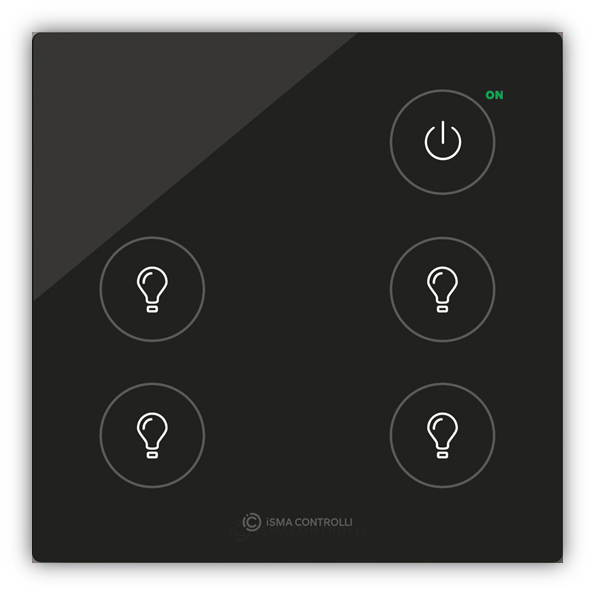
4 lighting buttons + master ON/OFF
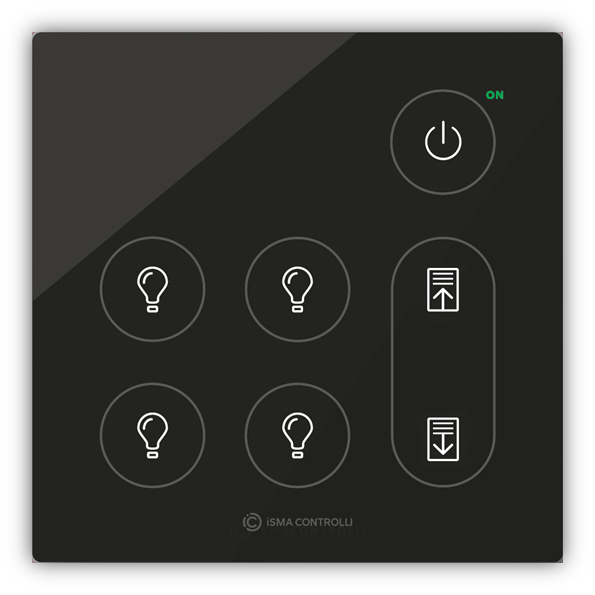
4 lighting buttons + 1 blind + master ON/OFF
Key features
- Build a distributed lighting system according to the user’s specification
- Suitable for commercial applications such as restaurants and conference rooms
- Master ON/OFF light switch
- Tap and hold to dim the lights
- Tap and release for ON/OFF switching
- Modbus RTU and BACnet MS/TP support
| Benefit | What it means on site |
|---|---|
| Reduced cabling | Only one bus for comfort, lighting and blinds |
| Less engineering | No additional gateways to specify, configure and maintain |
| Open system | One communication protocol, so troubleshooting uses one set of tools |
| Easy daisy-chain | Smart Plug connection, the same as for the comfort panels |
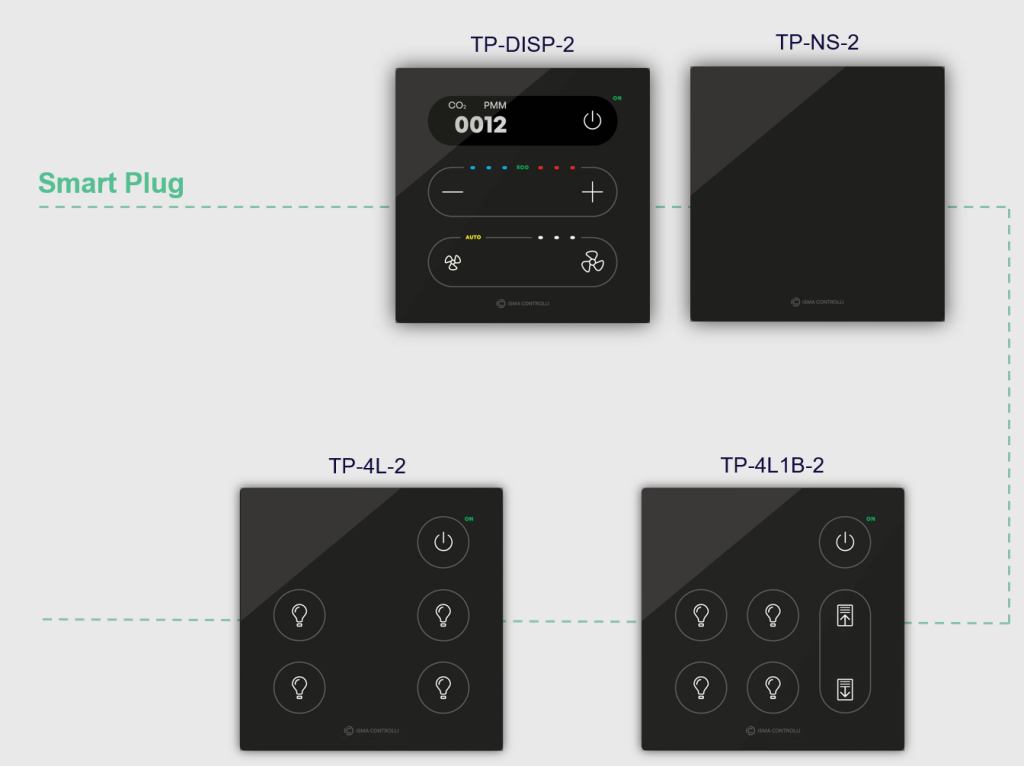
User Operation – What the Panel Really Does
This is the single most important idea in the whole lesson, and it is the one that surprises most integrators.
What the user experiences
From the release material, and from the user’s point of view at the wall, the panel offers two gestures:
| Gesture | Lighting button | Blind button |
|---|---|---|
| Tap and release | Switch the light ON or OFF | Continuous operation – the blind runs to its end position |
| Tap and hold | Dim the light while the finger stays on the field | Move & stop – the blind moves while held and stops on release |
What the panel actually sends
The panel does not separate a “tap” from a “hold” for you. It reports a plain on/off state per button, and it is the component in the controller – LightOnOffDimming1Switch – that measures how long the state stays high and decides whether that was a switch or a dimming ramp.
The touch sensor itself distinguishes two press lengths, which the assigned functionality may use or ignore:
| Press | Minimum touch time | Maximum touch time |
|---|---|---|
| Short press | 70 ms | 400 ms |
| Long press | 400 ms | 11 s |